Mix and Match promotions are one of the options for running promotions using your Uniwell POS terminals. Once setup, these promotions will automatically trigger within a sale, simplifying the process. Uniwell Lynx allows you to easily to set up, maintain and analyse the success of mix and match promotions.
Creating a Mix and Match Promotion
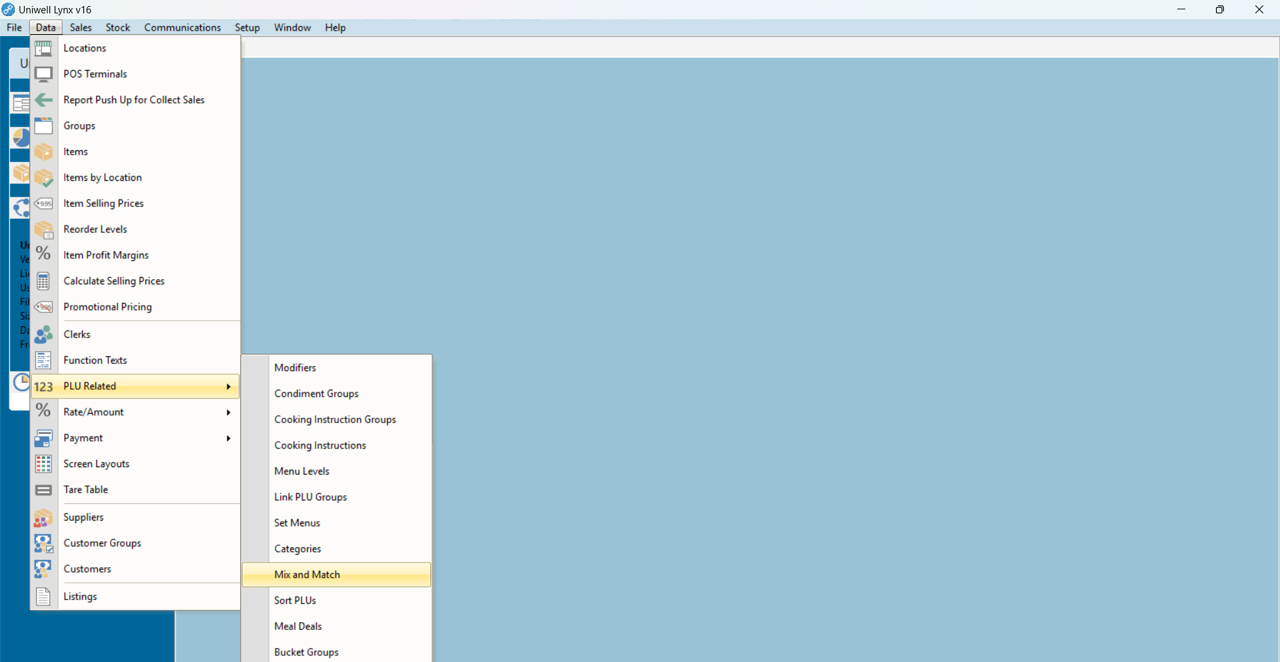
- Go to the Data menu and click on PLU Related. Then select Mix and Match
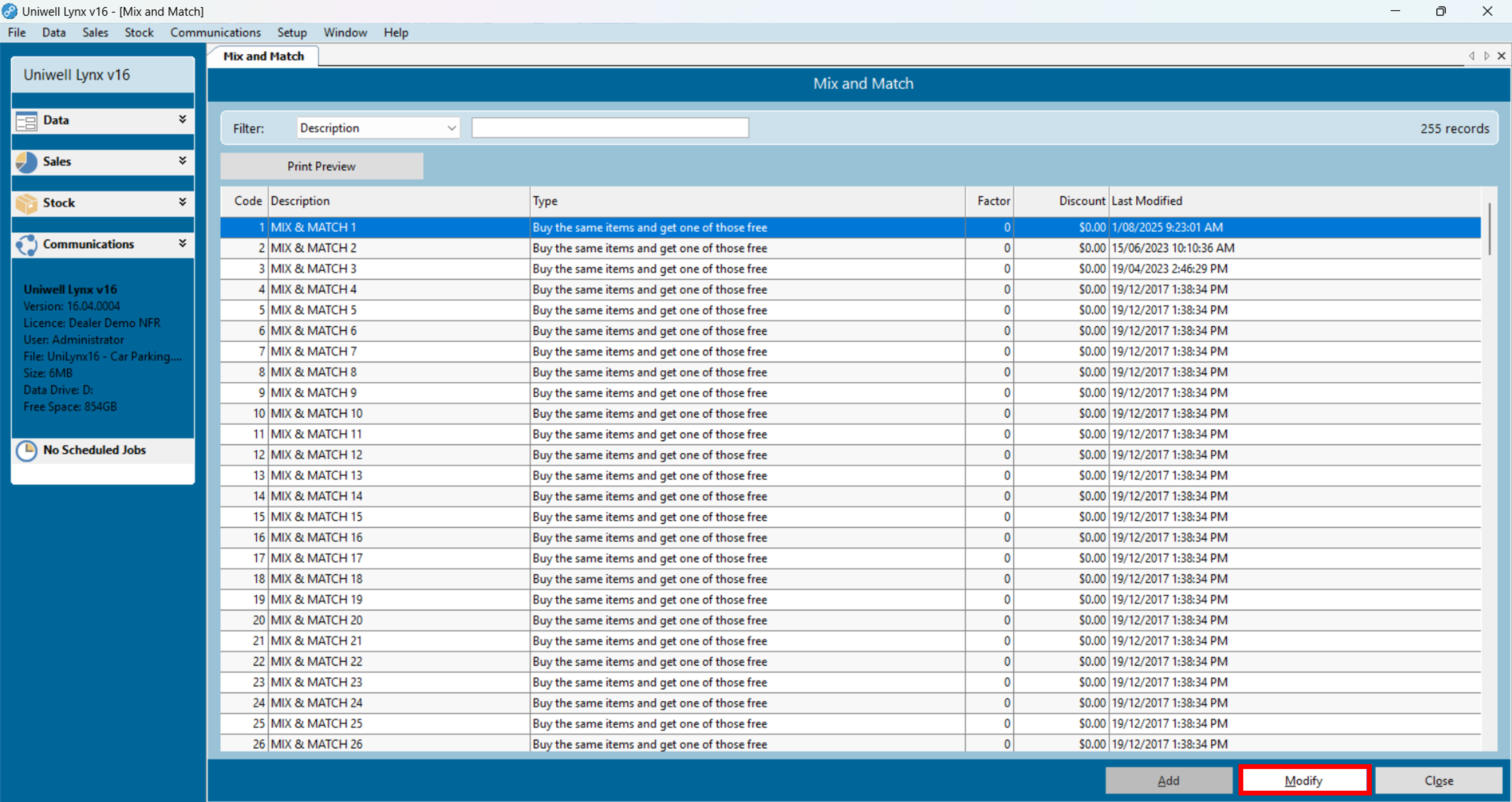
- Select an available promotion and click the Modify button
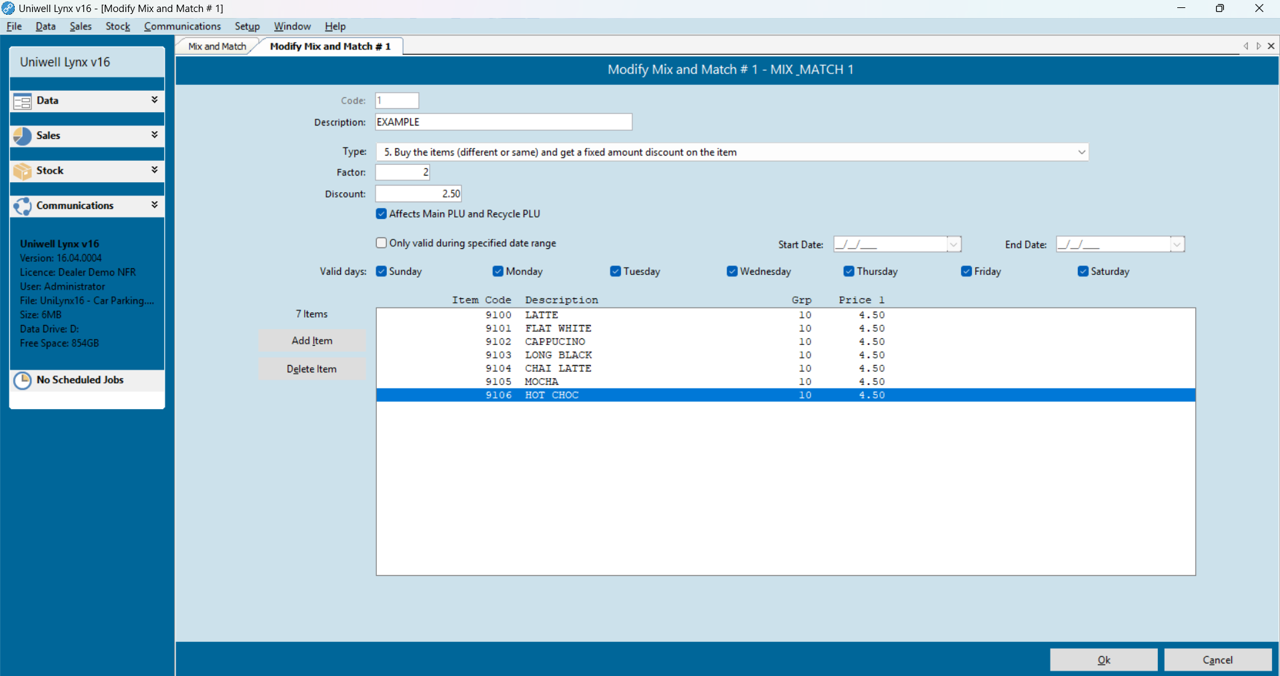
- From this screen you can enter the information required for your mix and match promotion
Description – enter a relevant name for your promotion
Type – select from the dropdown menu the type of promotion you wish to run
Factor – enter the amount of purchased items required to trigger the promotion
Discount – enter the applicable discount amount for your promotion
Valid Days* – check the boxes beside the days on which you wish to run the promotion.
If you wish to run your promotion only for a specific date range, tick the ‘Only valid during specified date range‘ checkbox and then select a Start Date* and End Date*.
Items – click the Add Items button to add the products that will be included in the promotion
- Click the Ok button to save
- Perform a Send Program with ‘PLUs‘ and ‘Mix and Match‘ selected to send your promotion to your POS terminal/s
Please note:
- An item cannot belong to more than one mix and match promotion
- An item cannot be included in both a mix and match promotion and a meal deal
- *If you are using the Valid Days or Start Date/End Date features you must do a Send Program of Mix and Match EVERY day BEFORE the start of trading so that the Mix and Match promotions in your POS terminals can be updated
Mix and Match Analysis Report
A Mix and Match report (Sales > Sales Reports) is available in Uniwell Lynx to help you evaluate the success of your promotions. For this report to work, ‘Mix and Match’ must first be enabled in the Collect Sales Options for each POS terminal (Data > POS Terminals > Modify > Under ‘Collect Sales Options’ enable ‘Mix and Match’).
 Lynx Software