This tutorial will take you through the steps of sending program data from your Uniwell Lynx database to your POS terminal/s. For the Send Program process to succeed, your POS terminal must first be turned on and in either sales mode or the sign on screen.
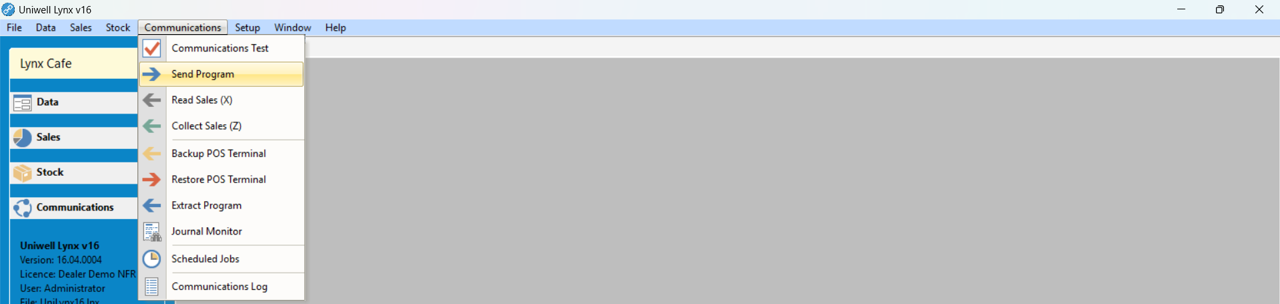
- Go to the Communications menu and select Send Program
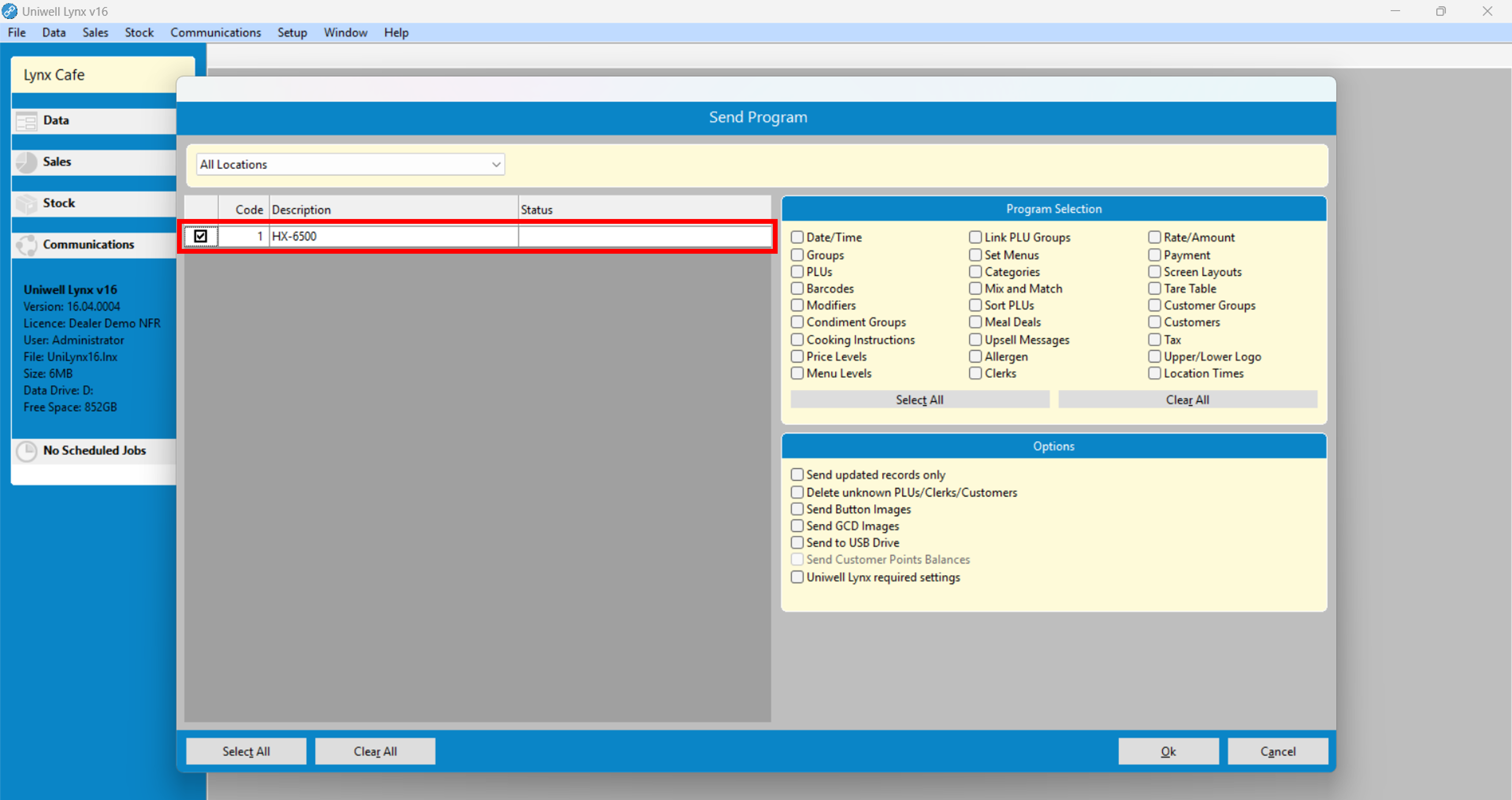
- Select the POS terminal/s you wish to send data to
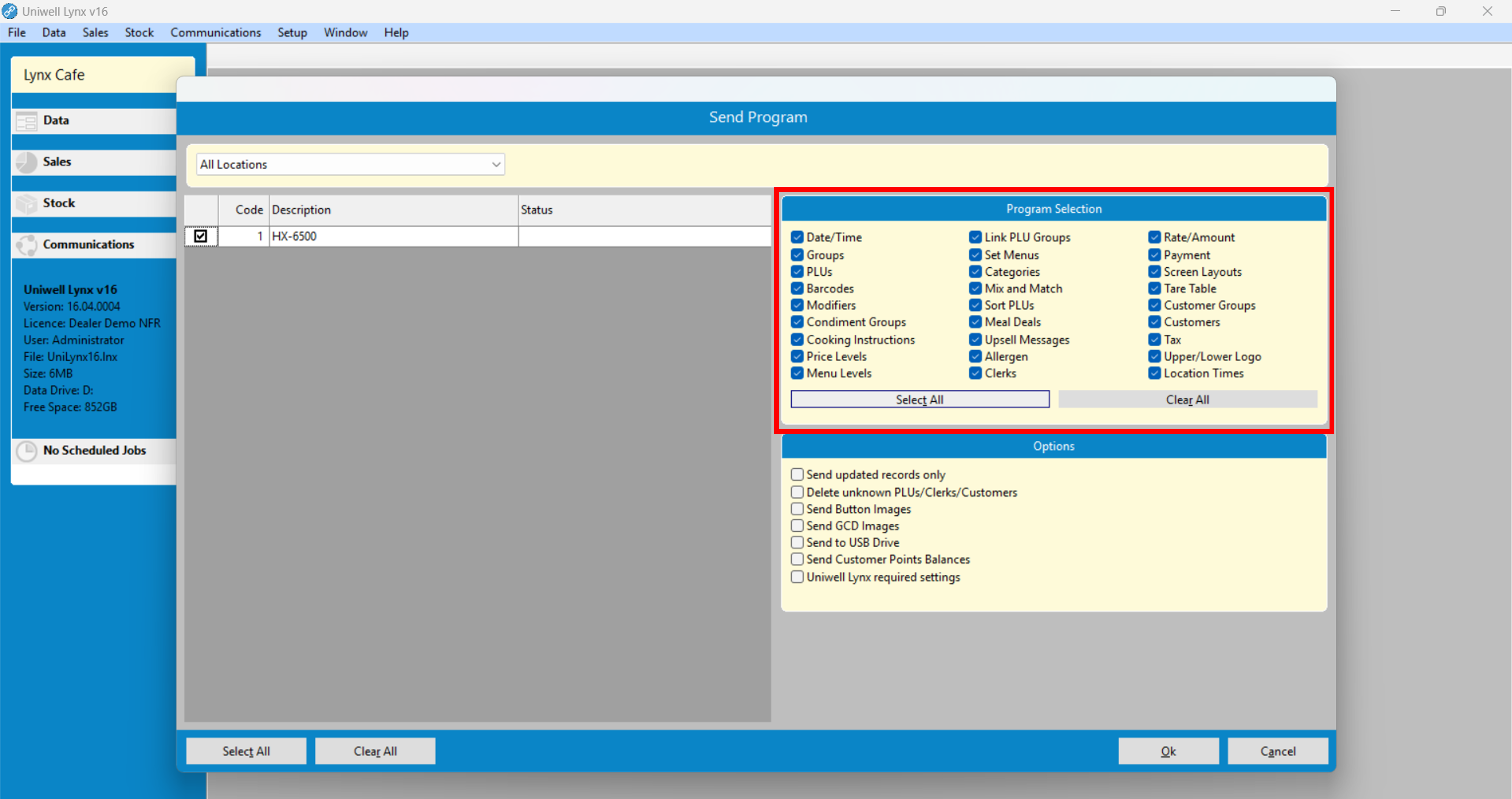
- Tick the checkboxes of the data you want to send under Program Selection
- Click the Ok button and Send Program will begin
Lynx Required Settings
A number of settings must be setup correctly in your Uniwell POS terminal in order to work correctly with Uniwell Lynx. The Lynx Required Settings option in Send Program can be used to send the correct settings to your Uniwell POS terminal.
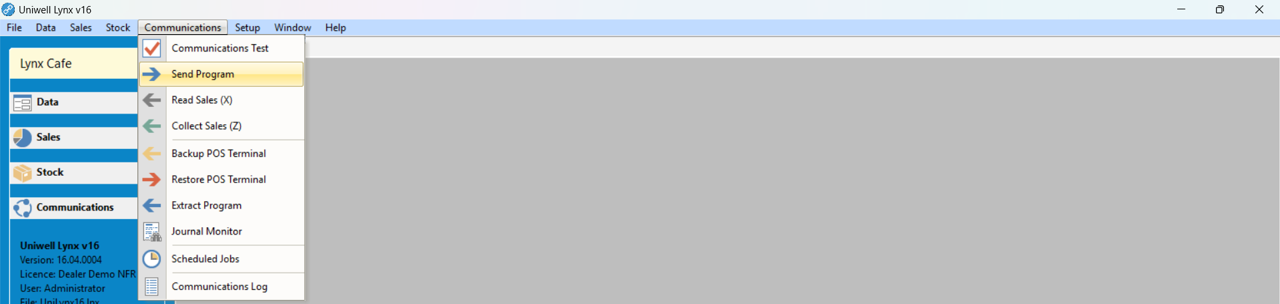
- Go to the Communications menu and select Send Program
- Select the POS terminal/s to be programmed
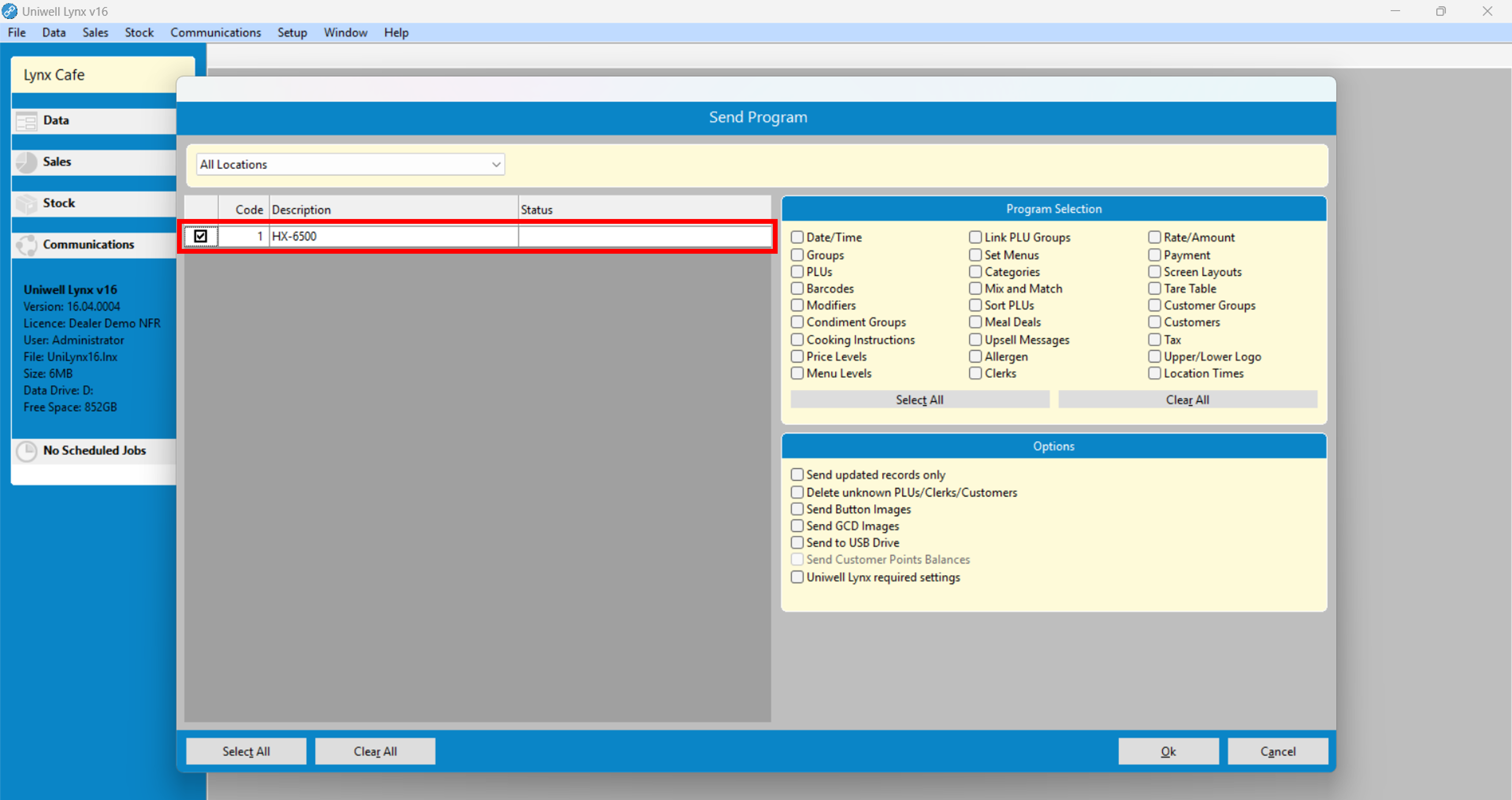
- Tick the Uniwell Lynx required settings checkbox located under Options
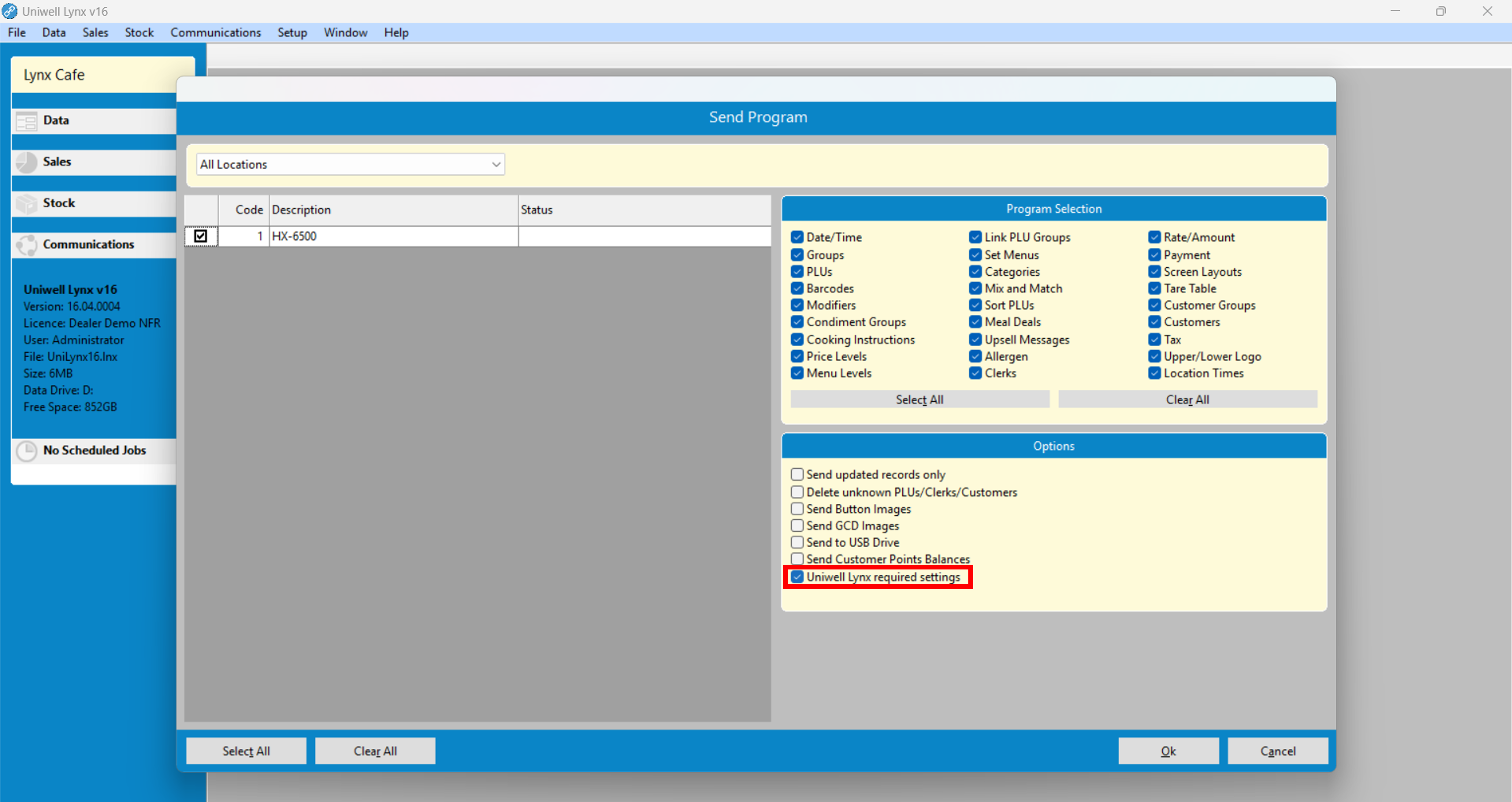
- Click the Ok button and Send Program will begin
To keep in mind:
- The ‘Send updated records only’ option compares what is being sent to the POS terminal this time with what was sent last time and simply sends the adjustments.
- The ‘Delete unknown PLUs/Clerks/Customers’ option deletes PLUs, Clerks and/or Customers from your POS terminals that do not exist in your Uniwell Lynx database.
 Lynx Software