There are many email features available in Uniwell Lynx such as emailing sales reports, the communications log, customer statements, purchase orders and more.
This tutorial will guide you through setting up email in Uniwell Lynx so you can make the most of these features.
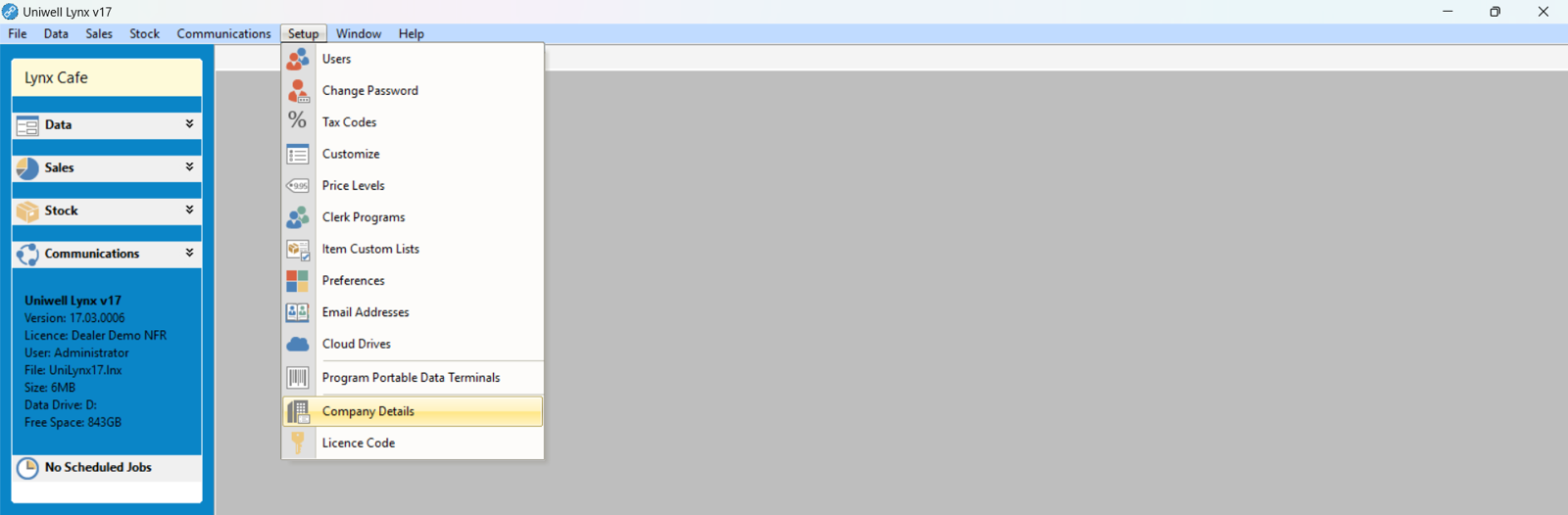
- Go to the Setup menu and select Company Details
- Enter the company email address from which the emails will be sent
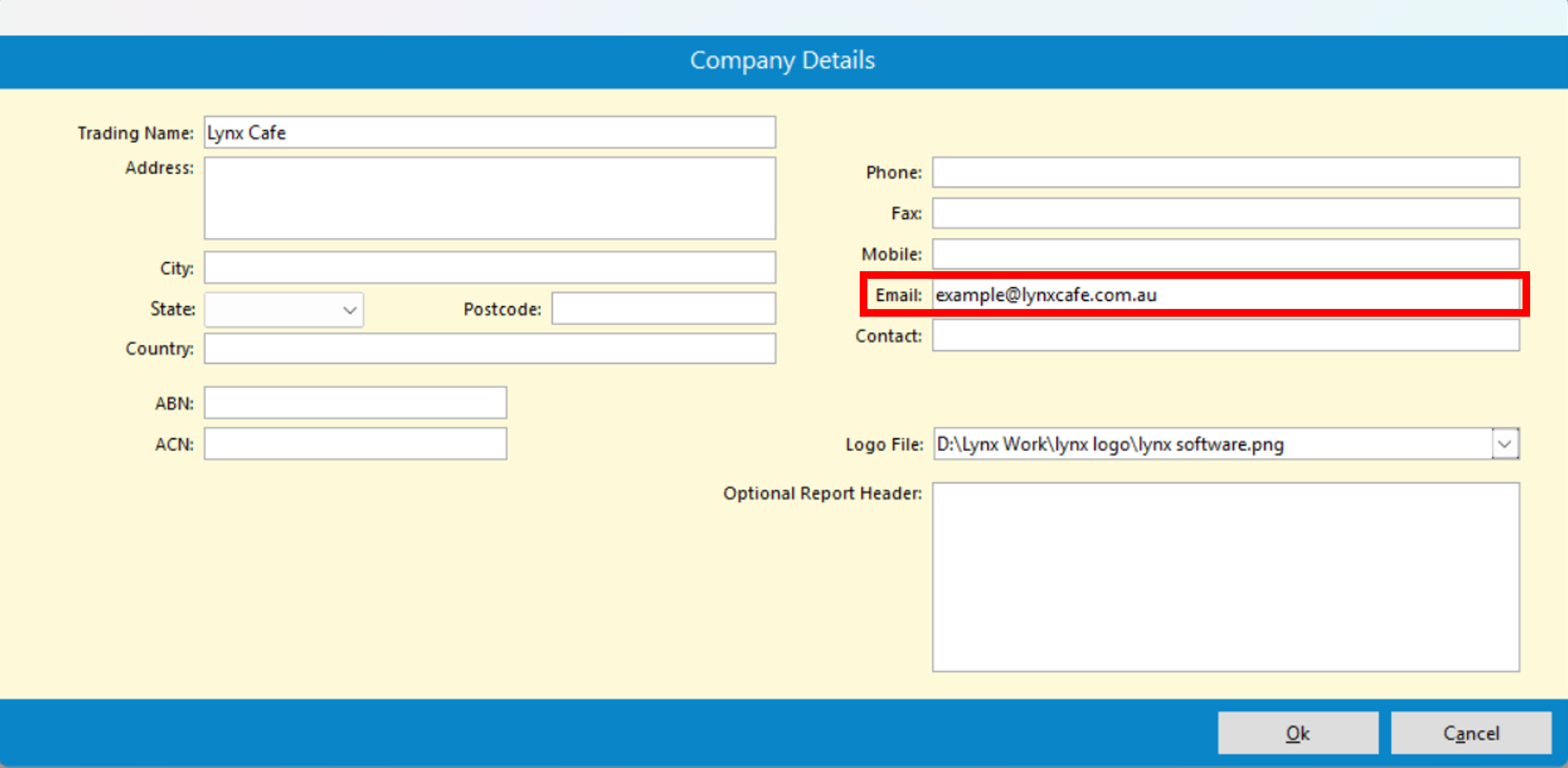
- Click the Ok button save
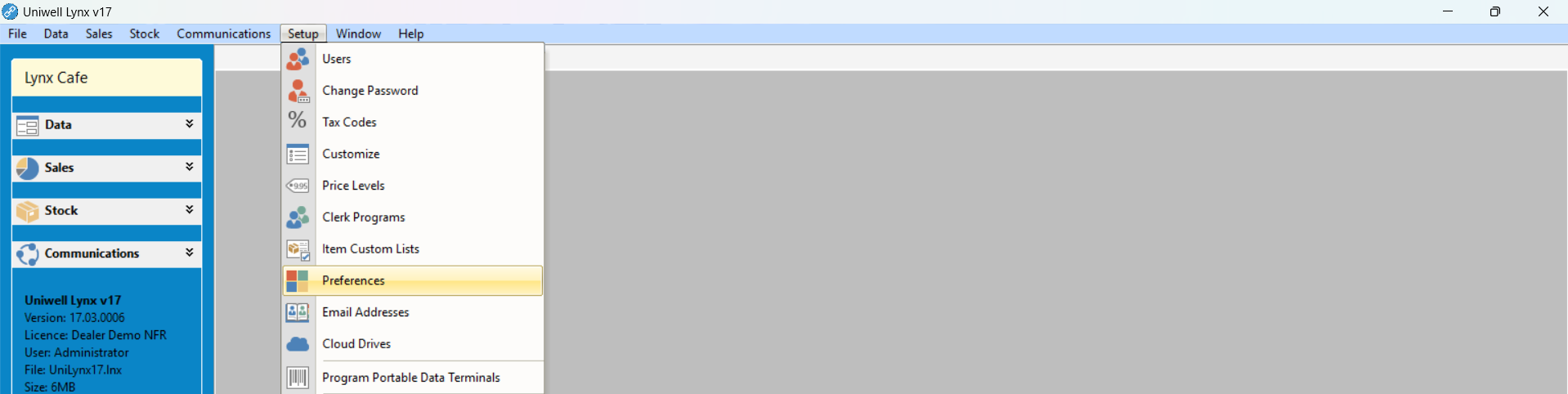
- Go to the Setup menu and select Preferences
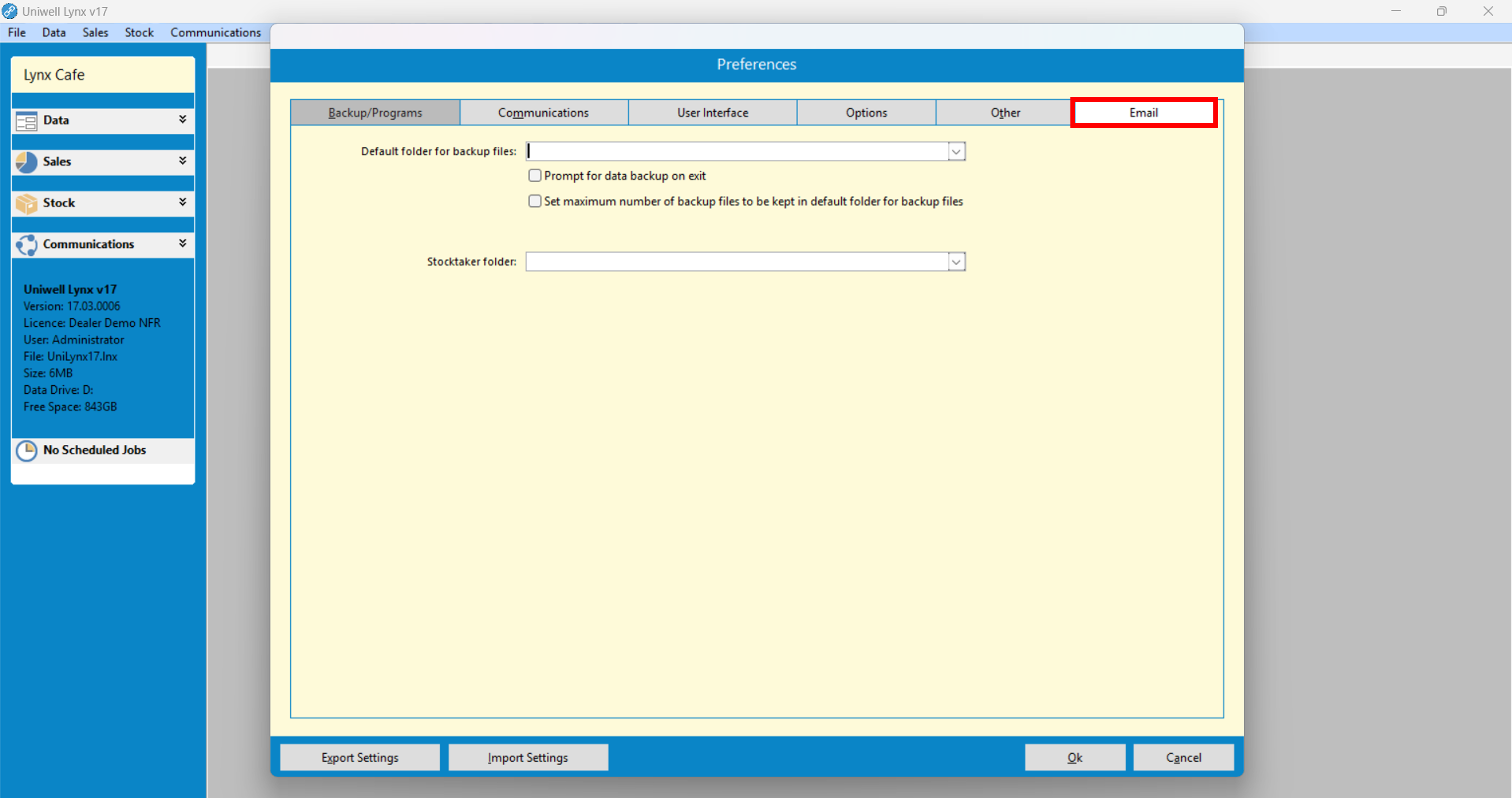
- Click the Email tab
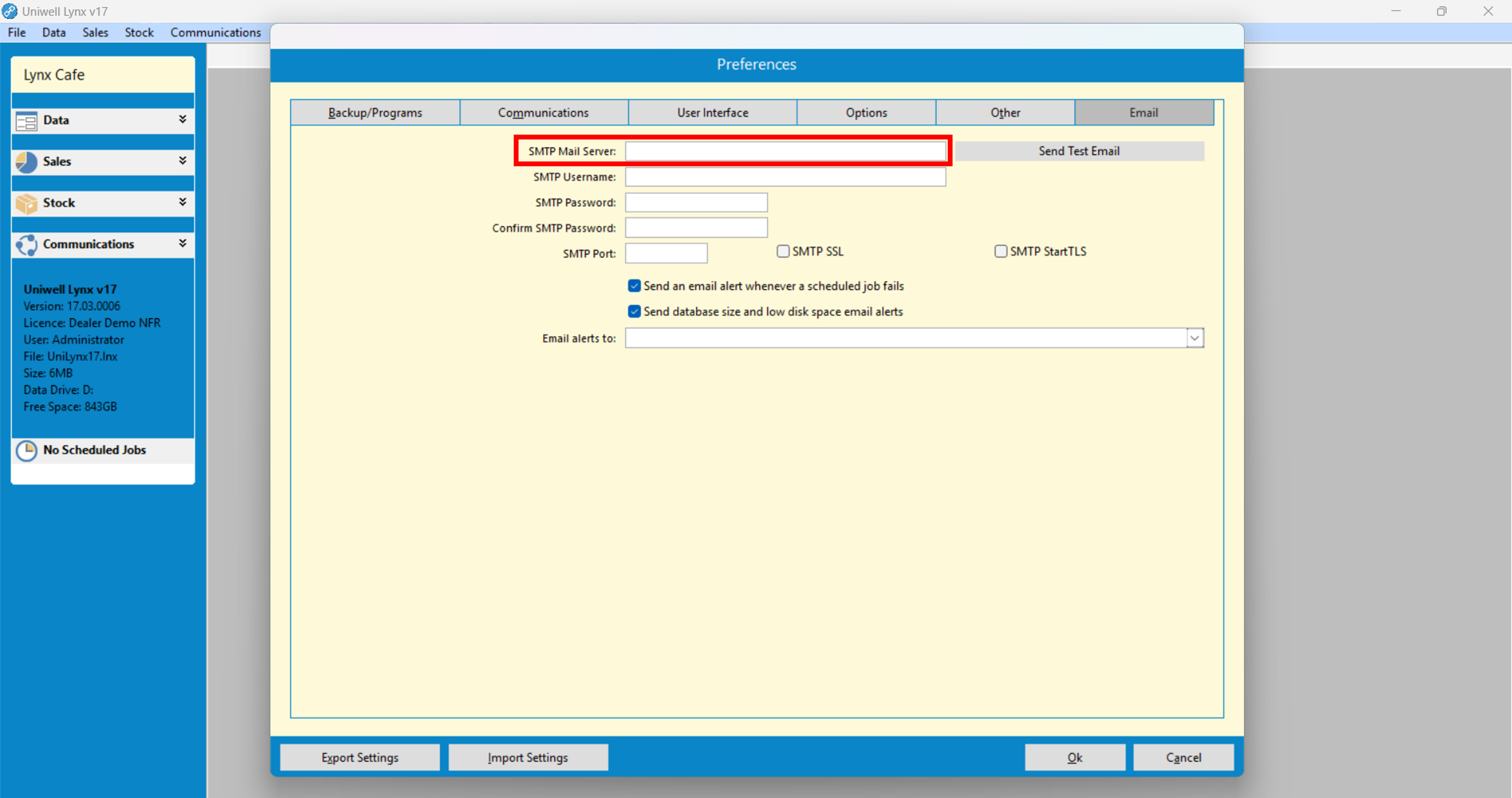
- Enter the SMTP Mail Server that will be used to send emails
- Enter the required SMTP settings for the mail server
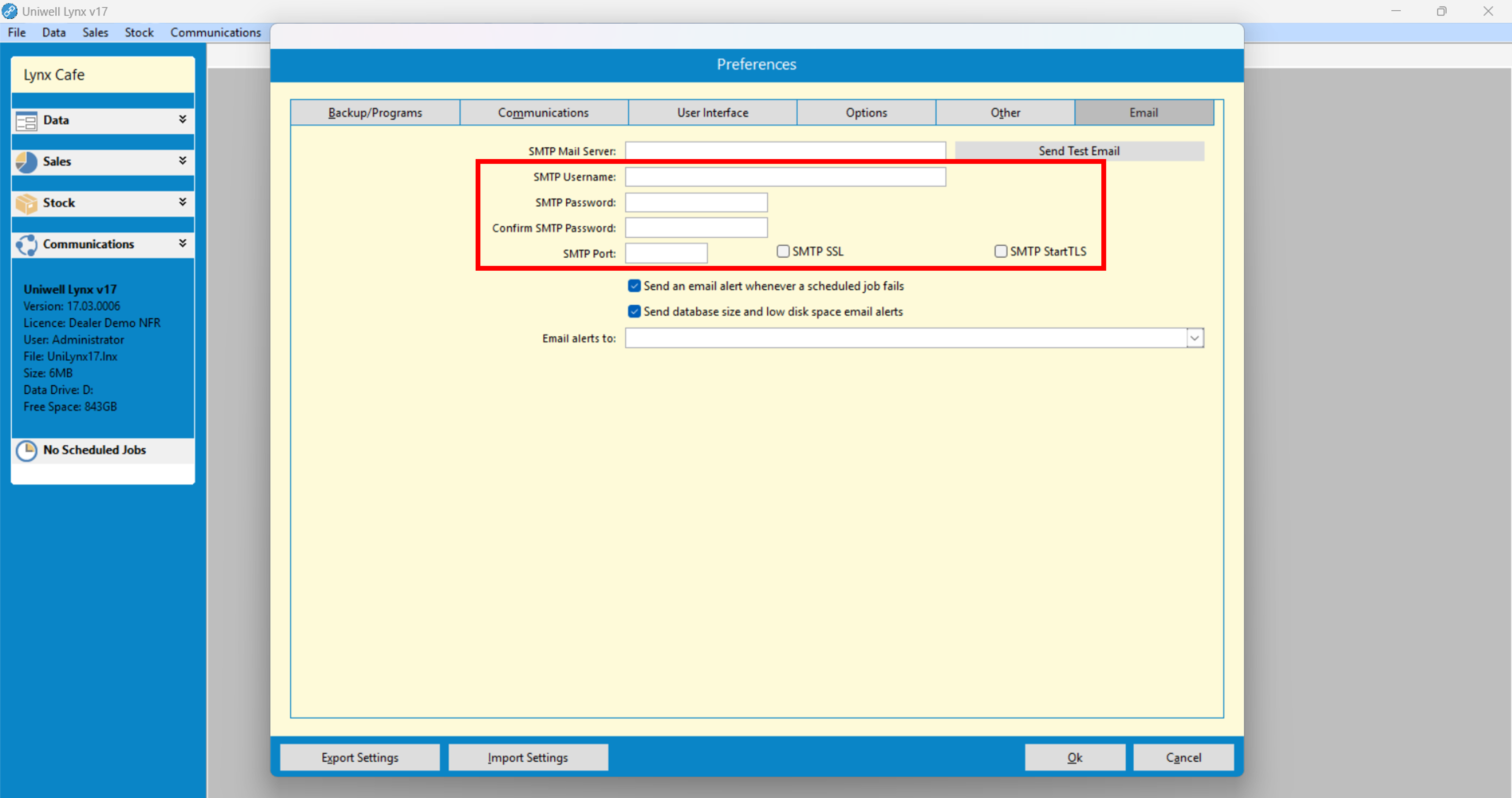
SMTP Username – The username required to login to the SMTP mail server
SMTP Password – The password required to login to the SMTP mail server
SMTP Port – The SMTP port setting required by the SMTP mail server
SMTP SSL checkbox – Tick if required by the SMTP mail server
SMTP StartTLS checkbox – Tick if required by the SMTP mail server
Optional: ‘Send an email alert whenever a scheduled job fails‘ and ‘Send database size and low disk space email alerts’ – Sends email alerts to the specified email address.
- Click the Ok button to save
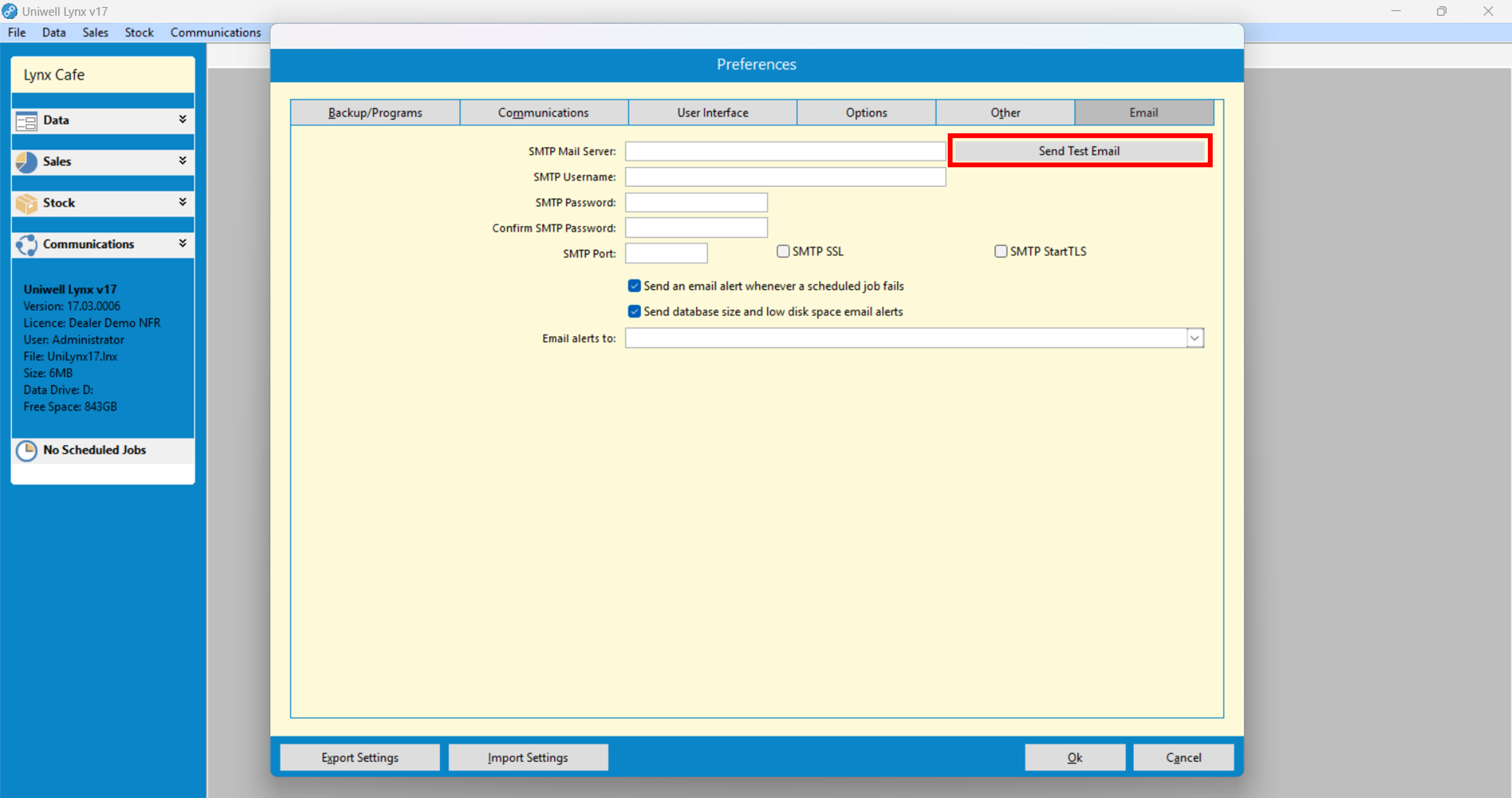
Tip: You can test your email setup by clicking the Send Test Email button. A test email will then be sent to the email listed in Company Details. If the test fails an email log will be displayed to help you diagnose any issues.
Adding Email Addresses
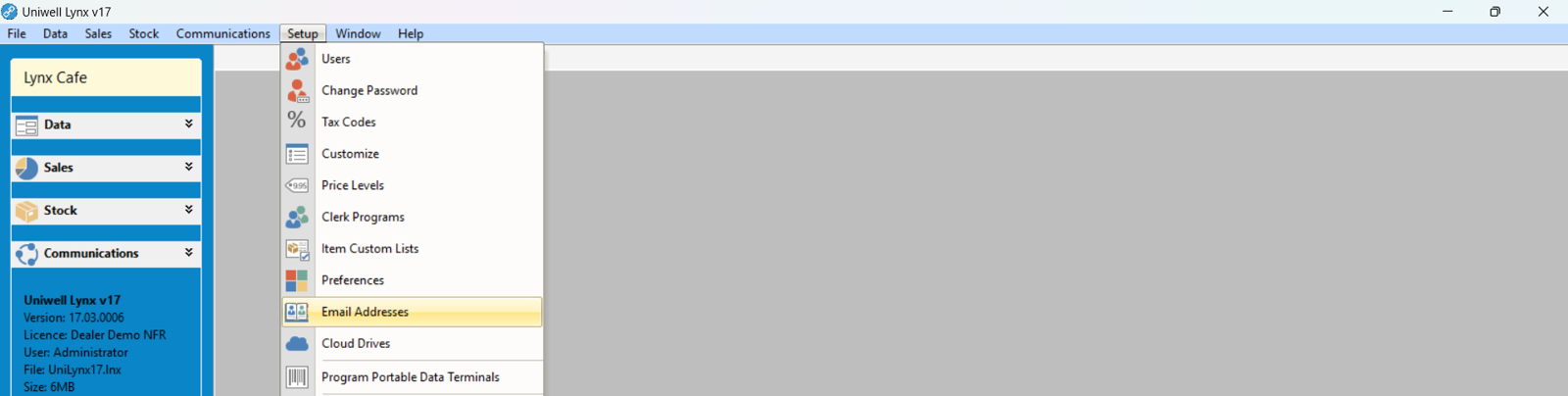
- Go to Setup menu and select Email Addresses
- Click the Add button
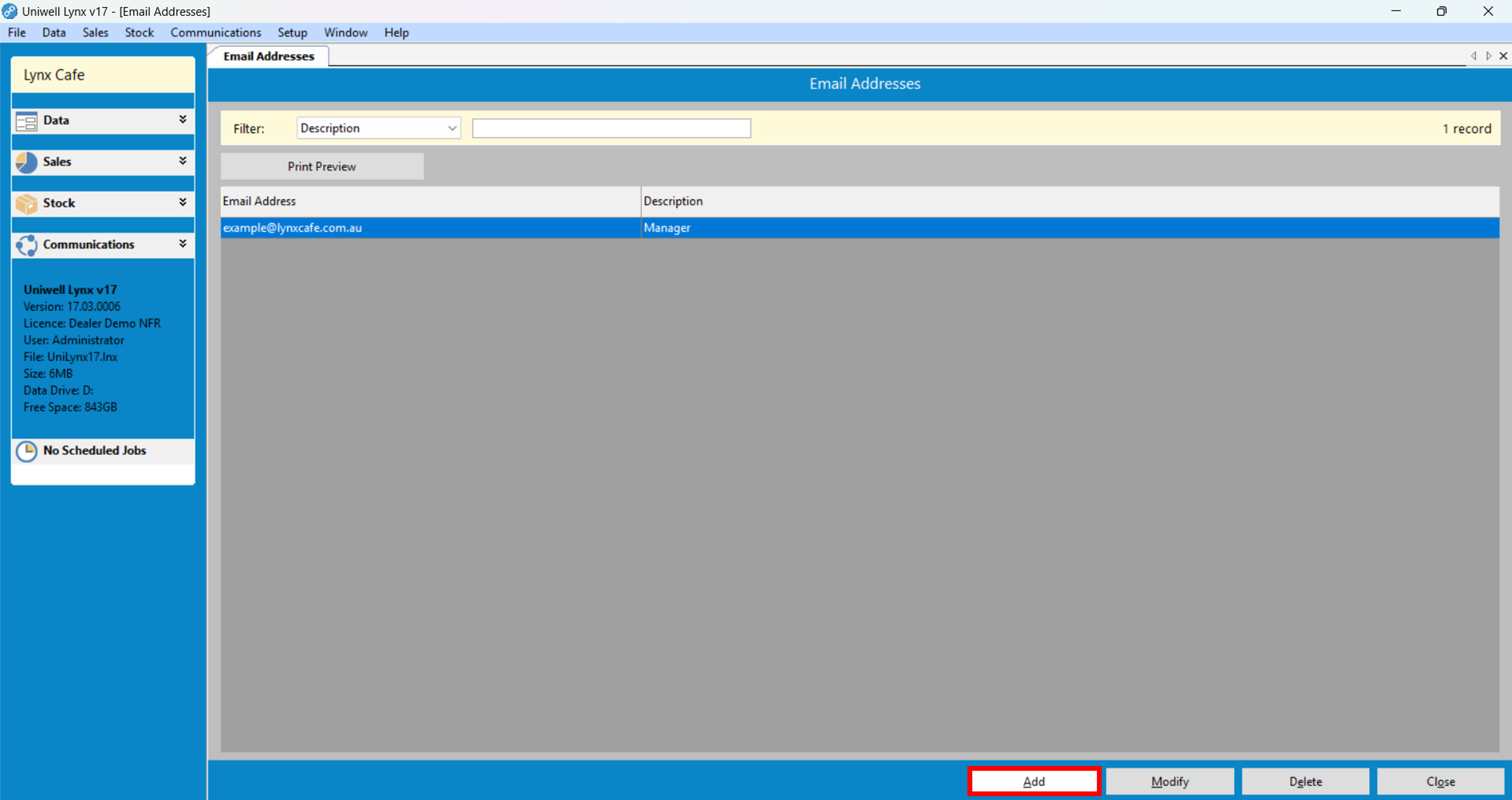
- Enter the Email Address and a Description for it

- Click the Ok button to save
Adding Customer Email Addresses
For those who have the optional Customers module, you can also add email addresses for all of your customers. This will enable you to email customer statements, invoices and promotions directly within Uniwell Lynx.
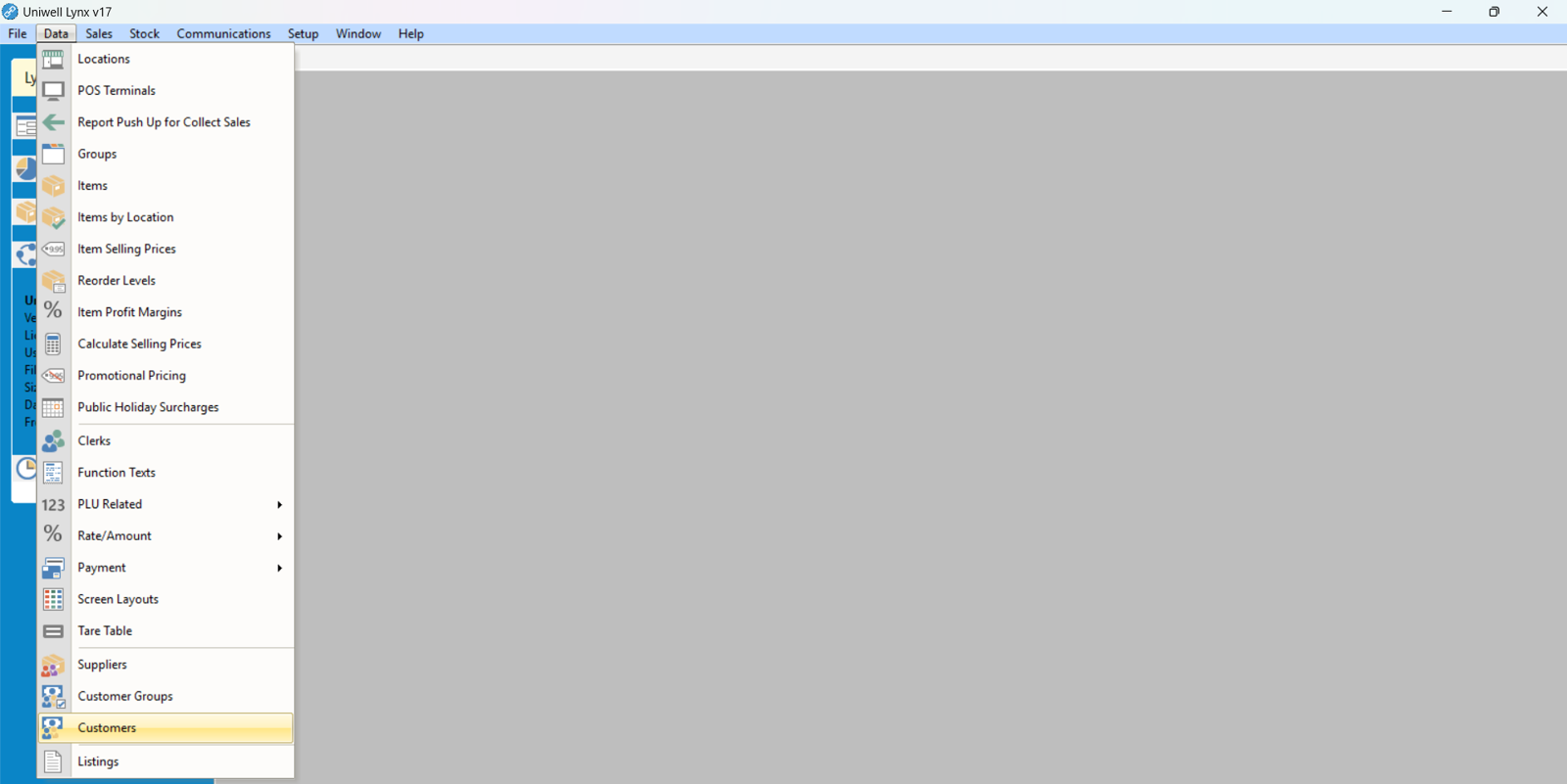
- Go to the Data menu and select Customers
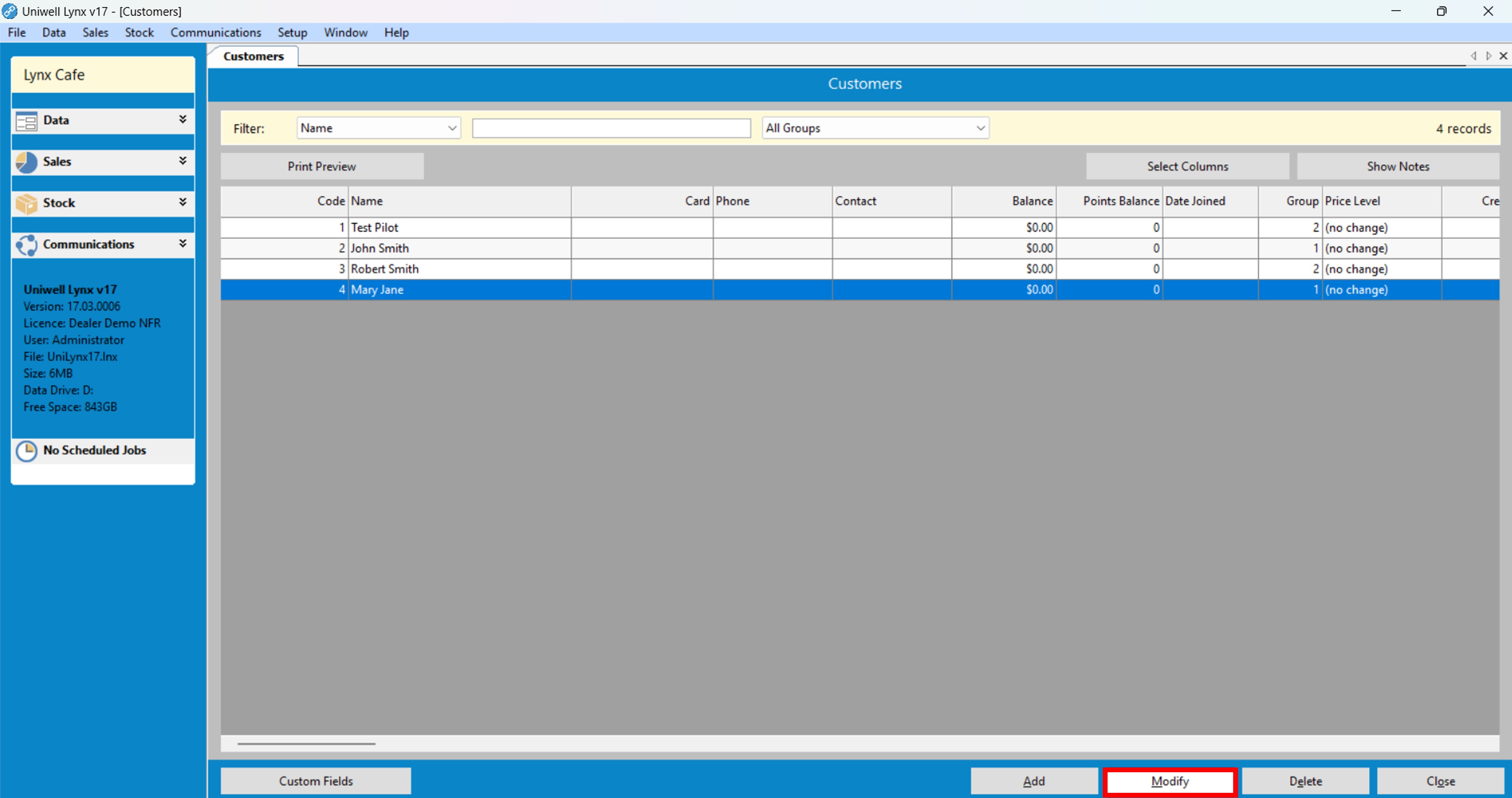
- Select the required customer and click the Modify button
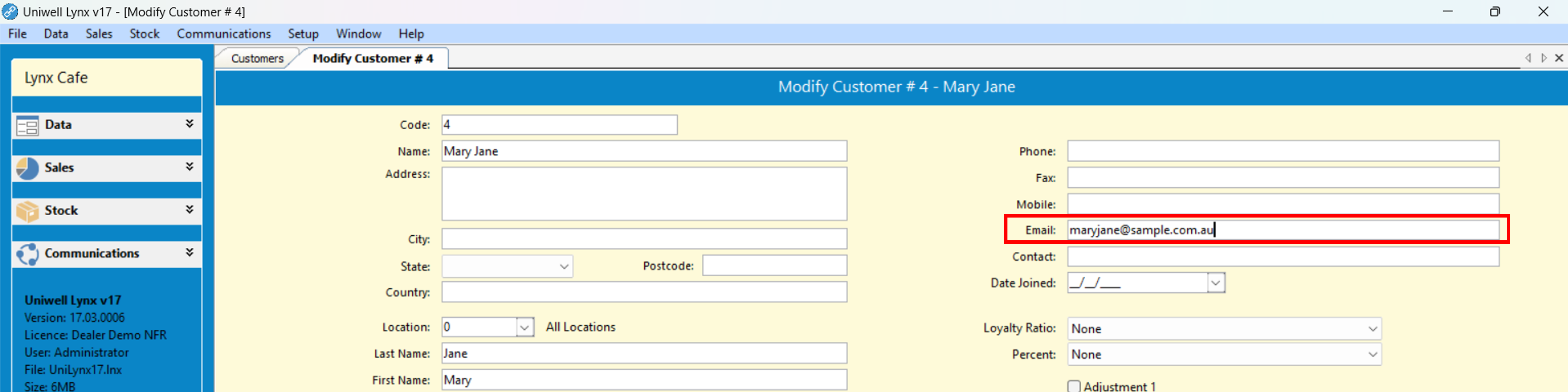
- In the Email box enter the customer’s email address
- Click the Ok button to save
Adding Supplier Email Addresses
For those who have the optional Stock Control module, you can also add email addresses for all of your suppliers. This will enable you to email PDF copies of purchase orders (Stock > Purchase Orders) to suppliers directly within Uniwell Lynx.
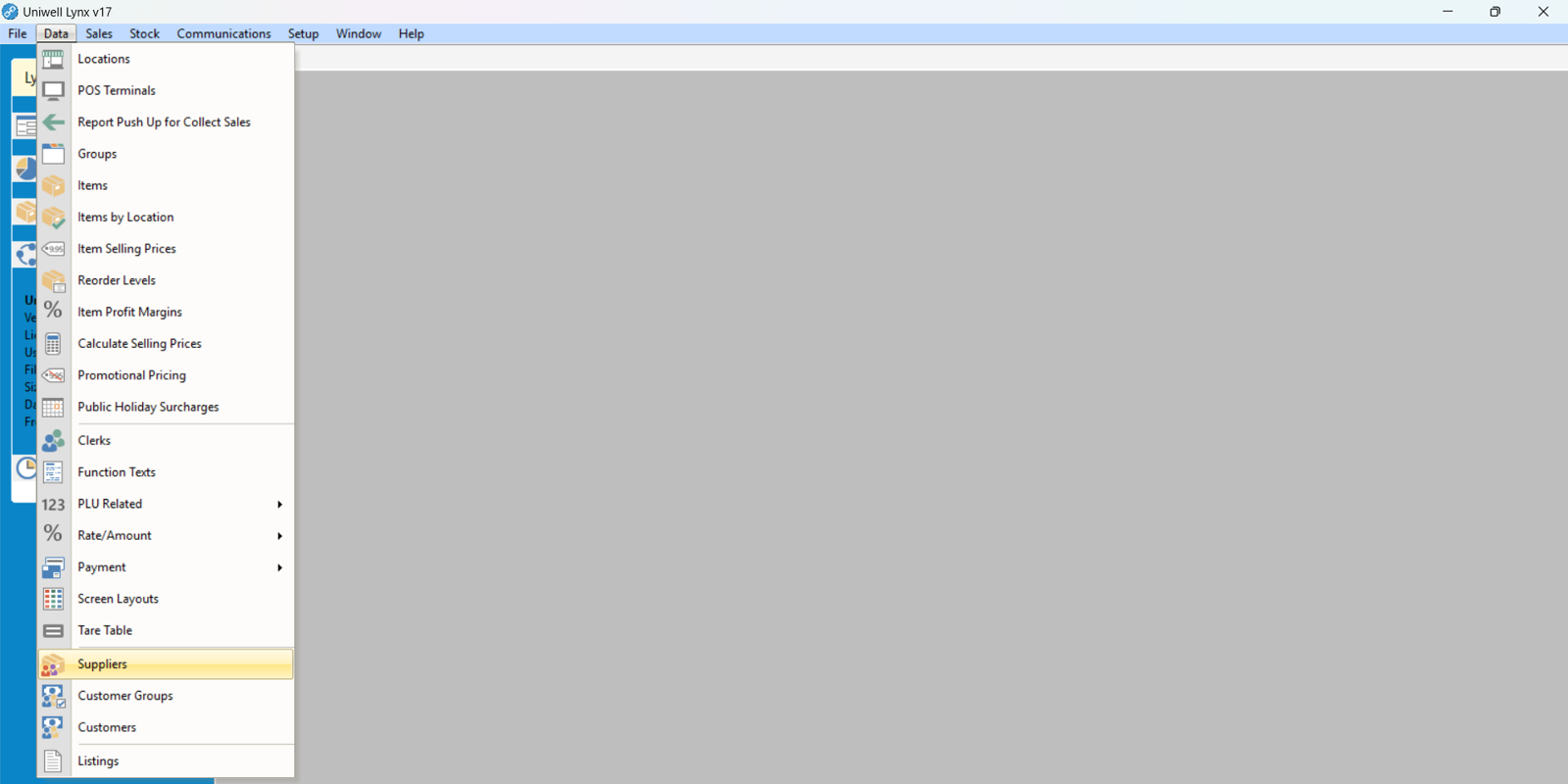
- Go to the Data menu and select Suppliers
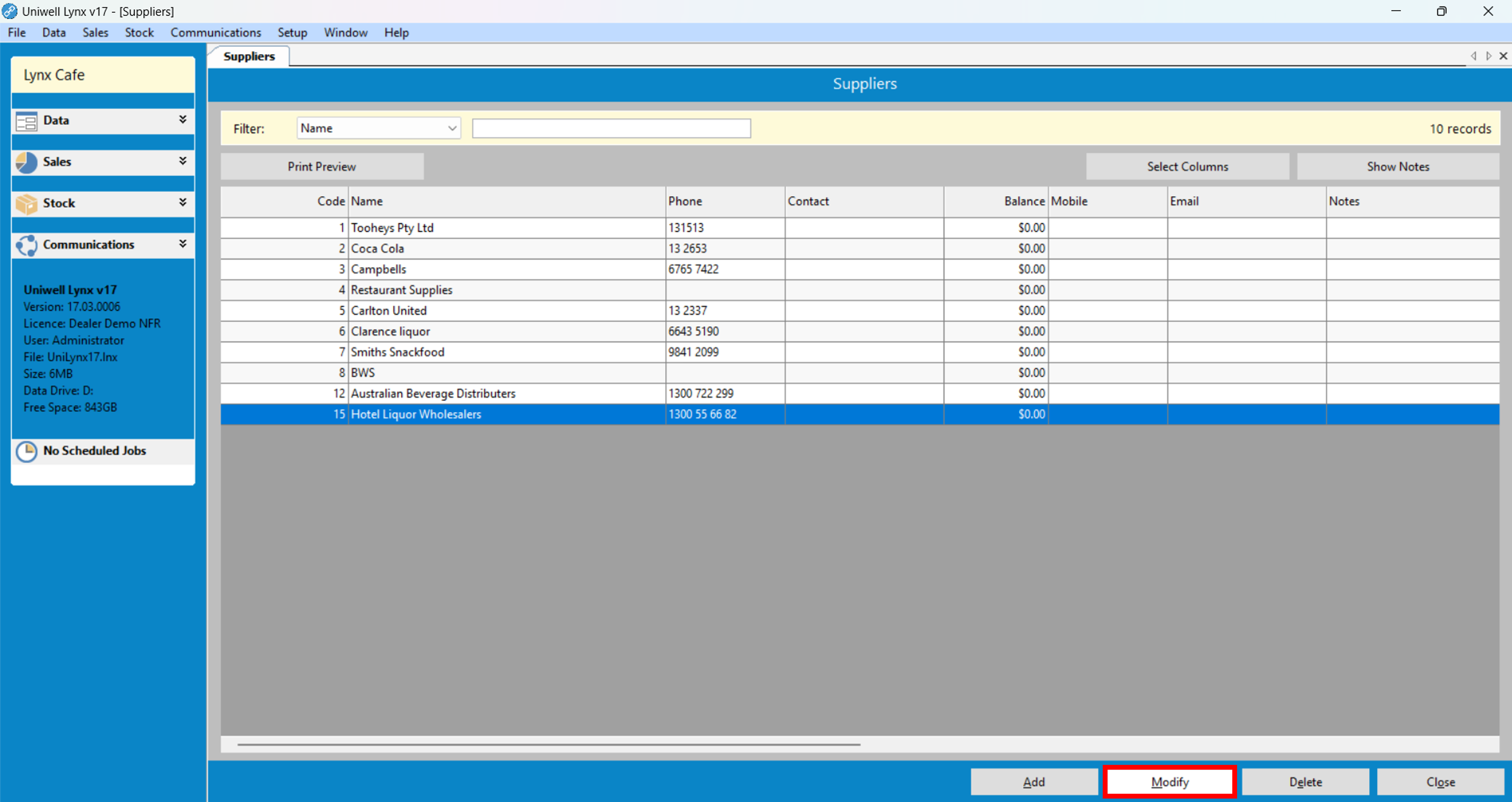
- Select the required supplier and click the Modify button
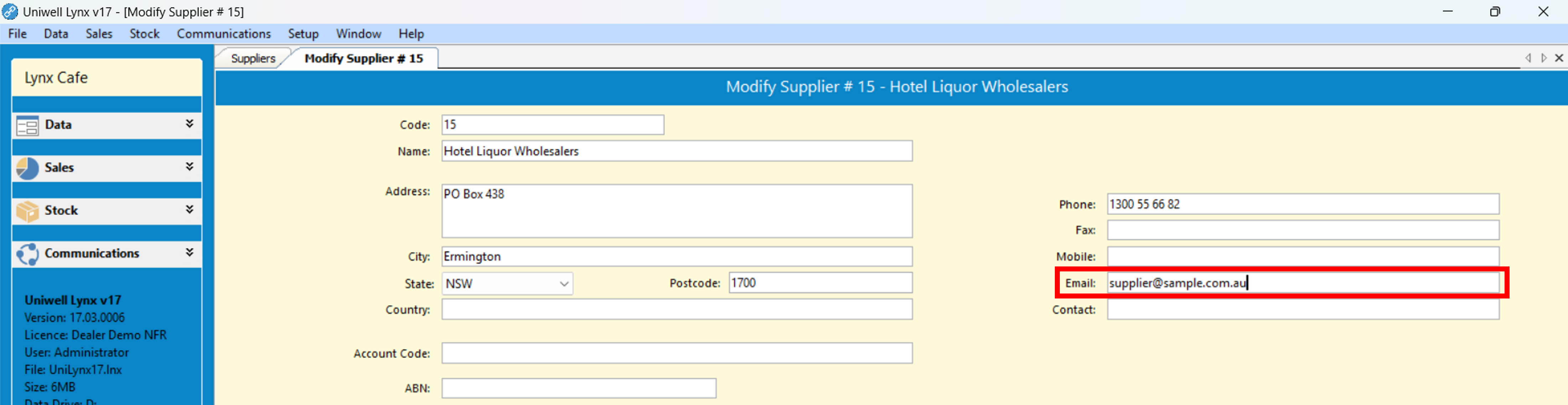
- In the Email box enter the supplier’s email address
- Click the Ok button to save

