Uniwell Lynx has an extensive range of reports to help you closely monitor the performance and profitability of your business. Understanding the various ways you can customise your reports will help you to tailor your system to suit how you would like to analyse your business.
Your reports are based on data retrieved from your POS terminal, so sales must be collected and sales batches processed before viewing the reports. For information on doing this, see our separate tutorial: Collect Sales and Sales Batches.
Viewing Reports
To view your reports, go to the Sales menu and select Sales Reports

From this screen you can open, save, print, email and cloud export reports, customised to your business needs.
Customising Reports
Some basic ways to customise a report are:
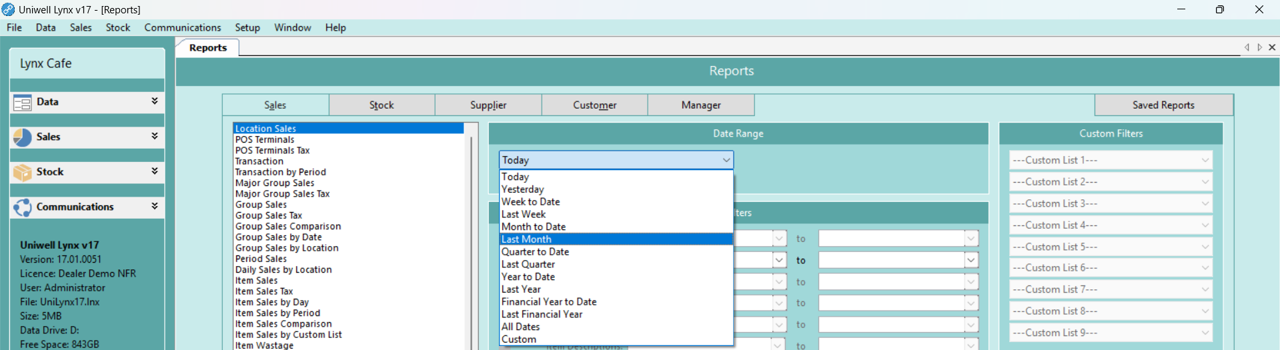
- Date Range
There are various preset date ranges available for reports. These allow you to quickly choose the dates you want your report based on, such as ‘Week to Date’ or ‘Last Month’. The ‘Custom Date’ option allows you to enter a specific date range for the report.

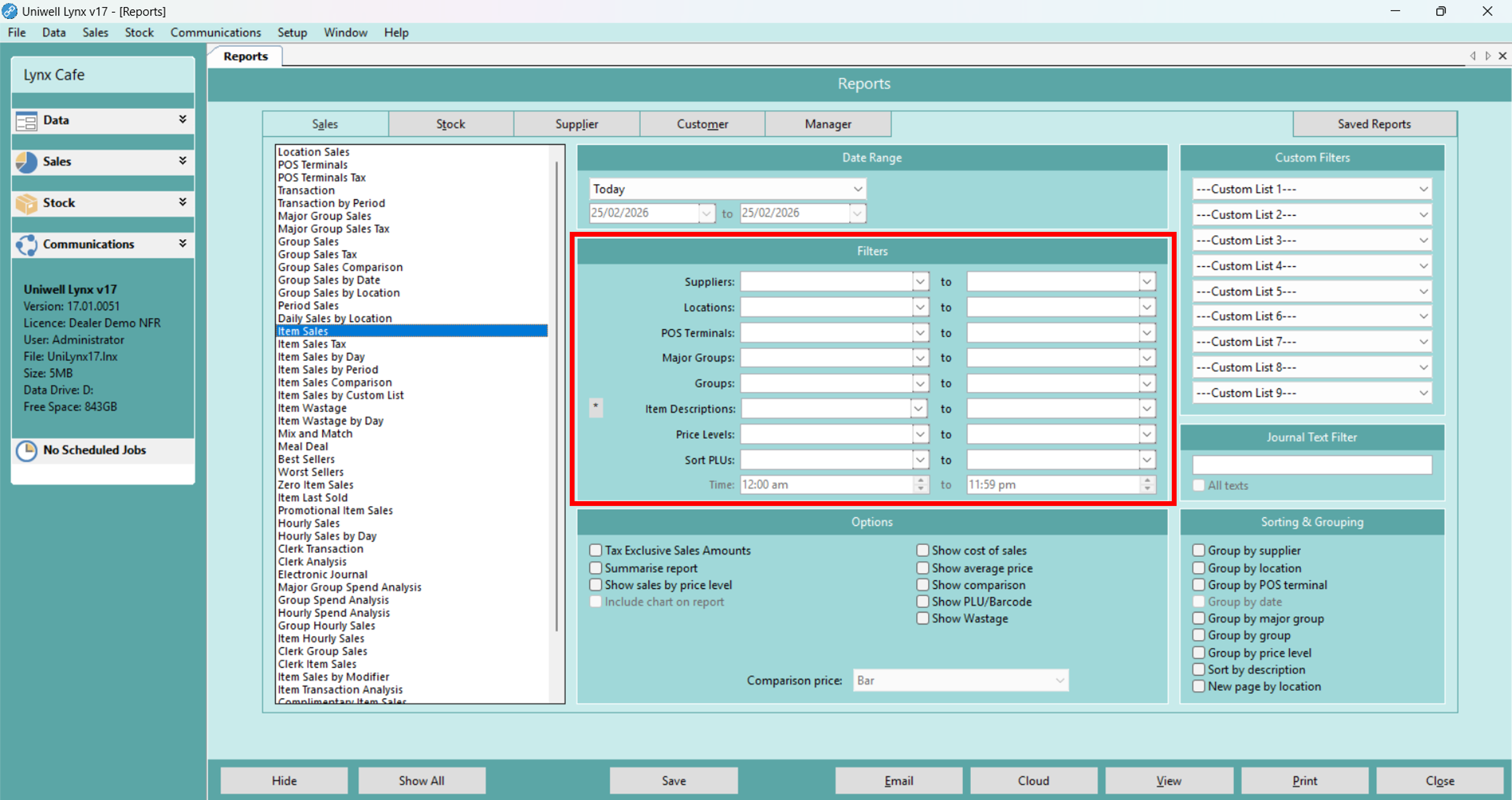
- Filters
Filters allow you to narrow down your report to a specific range. For example, you might choose to view a sales report based on a specific group, so as to analyse the success of your marketing and promotions relating to those products.
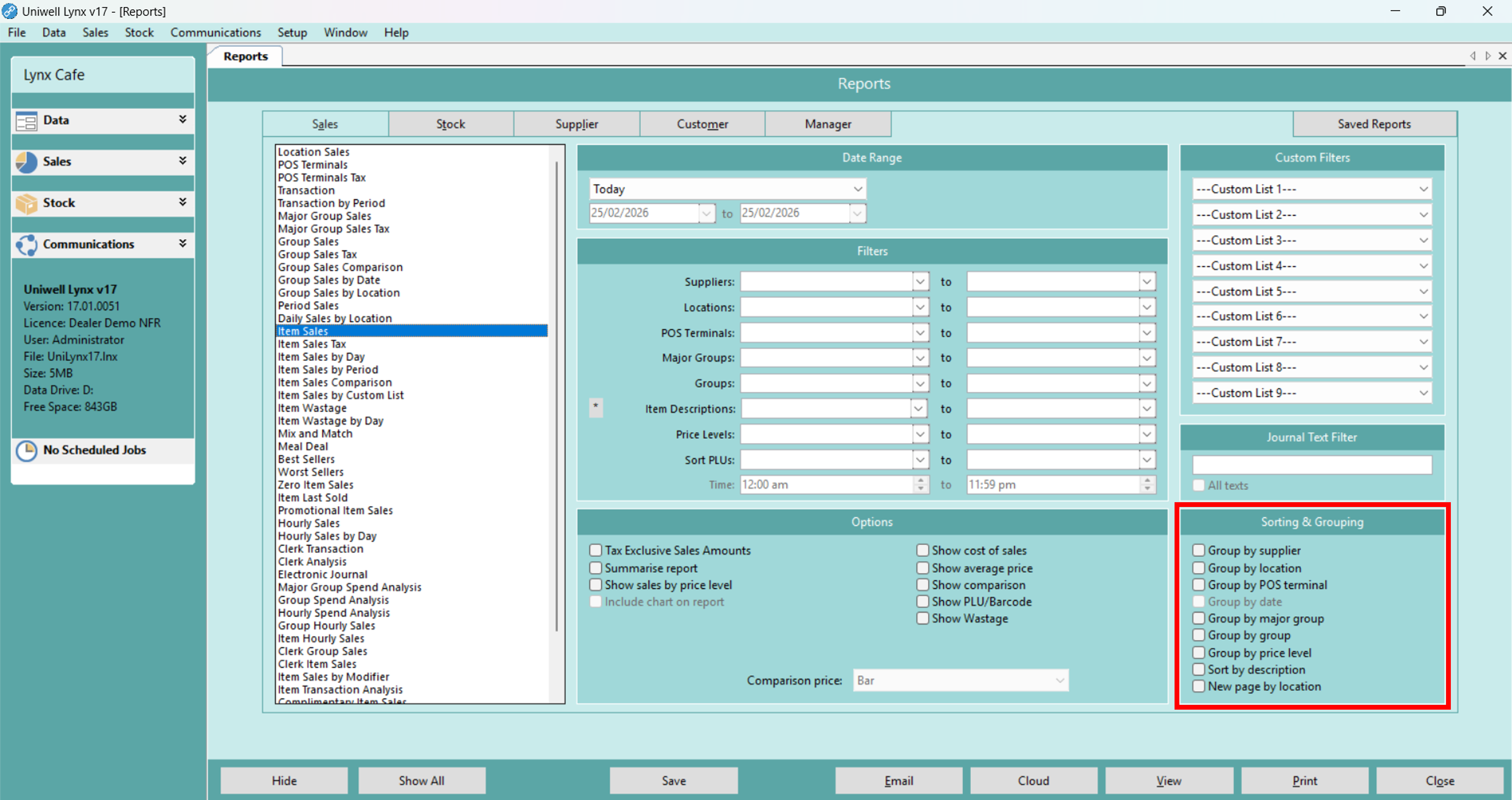
- Sorting and Grouping
These options allow you to change the way that data is presented on your report. For instance, you might want to view a sales report grouped by POS terminal, so you can see which specific items are selling at each of your POS terminals.
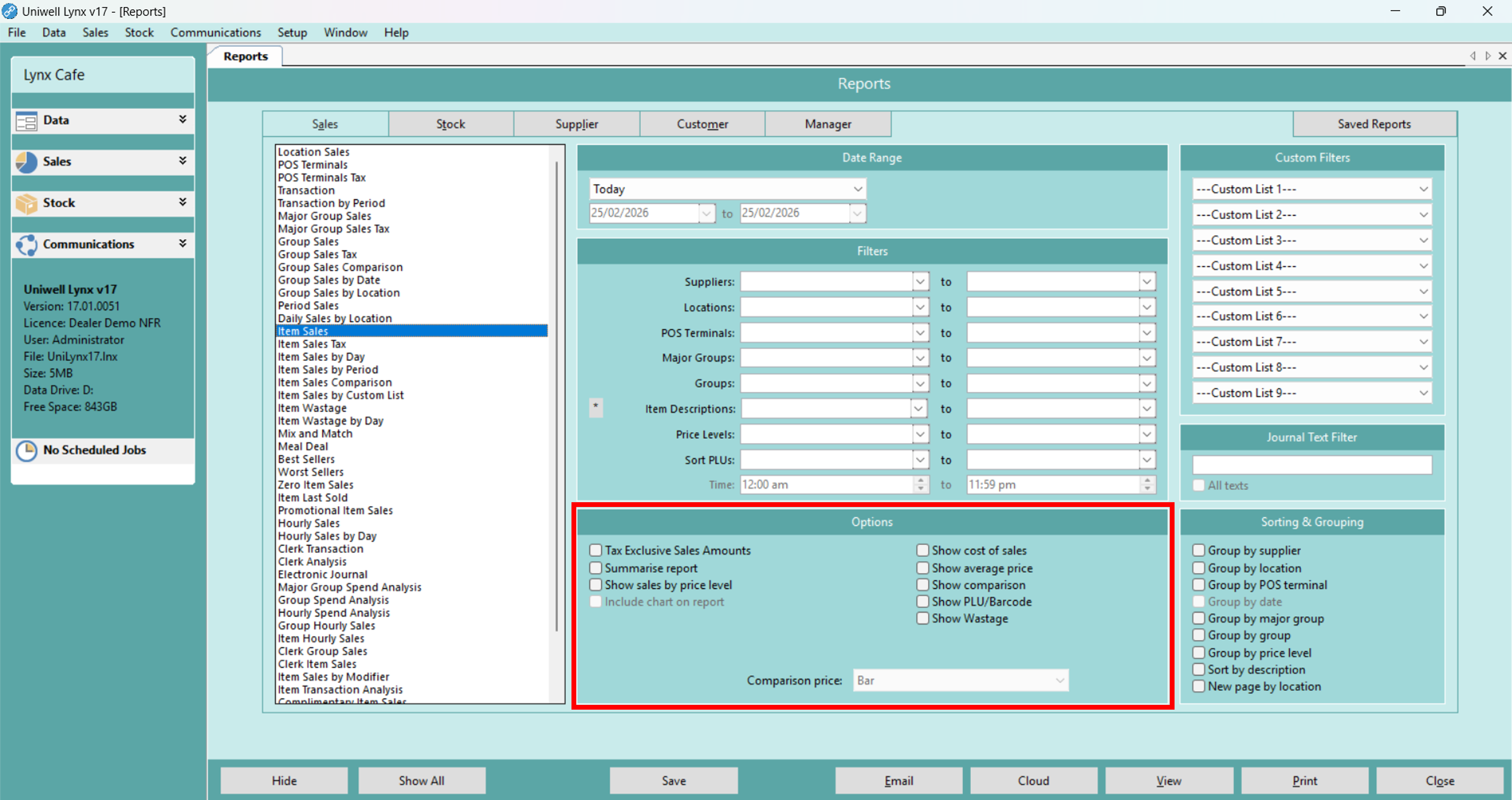
- Options
Some reports have specific options available that allow you to vary the data being viewed.
Saving Customised Reports
If you like a set of customisation options for a report, you can save them so that you can run the same report consistently.
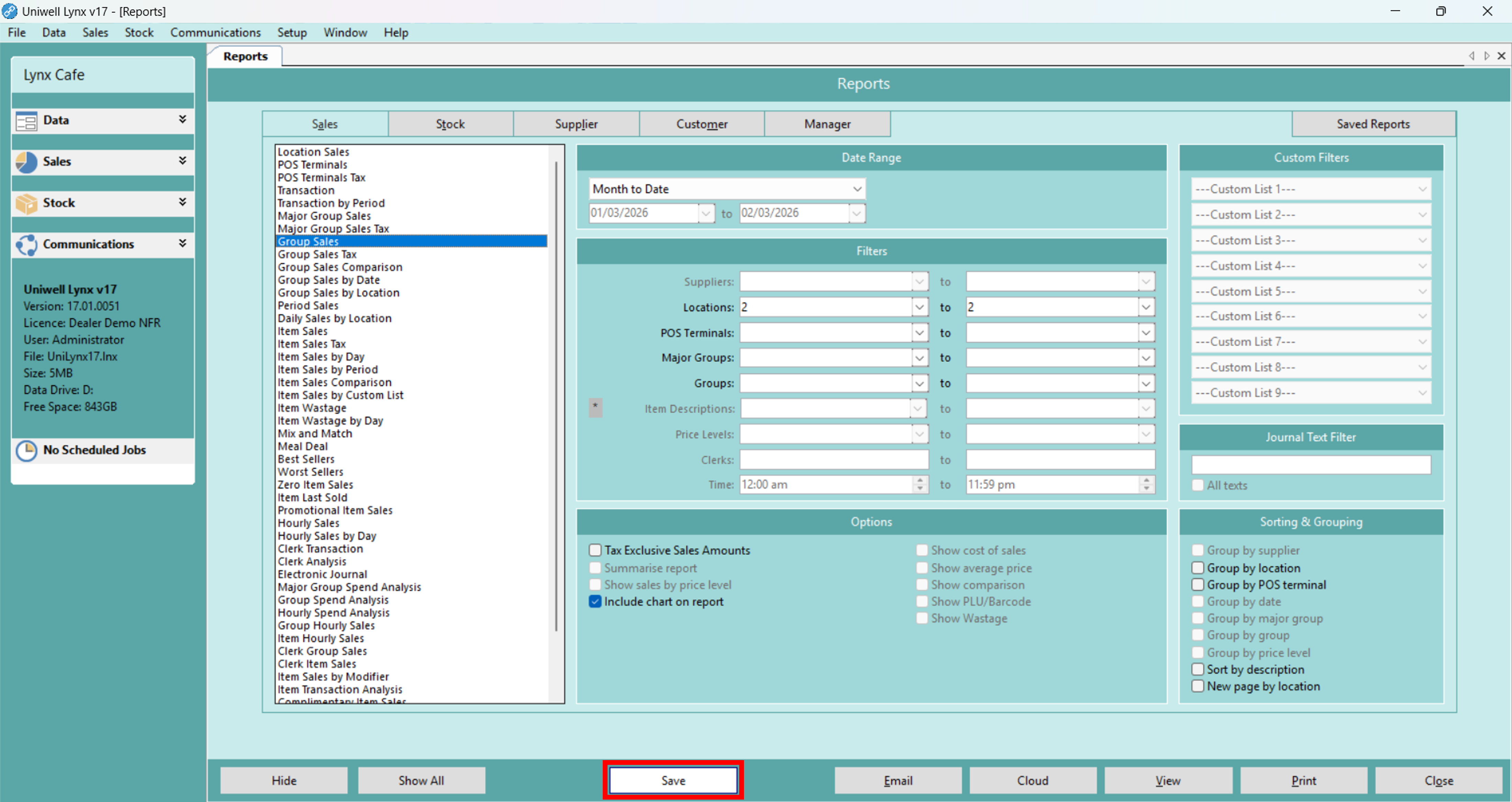
- Select the desired customisation options for your report
- Click the Save button
- In the Description box give the report a name and select an Email/Cloud Format
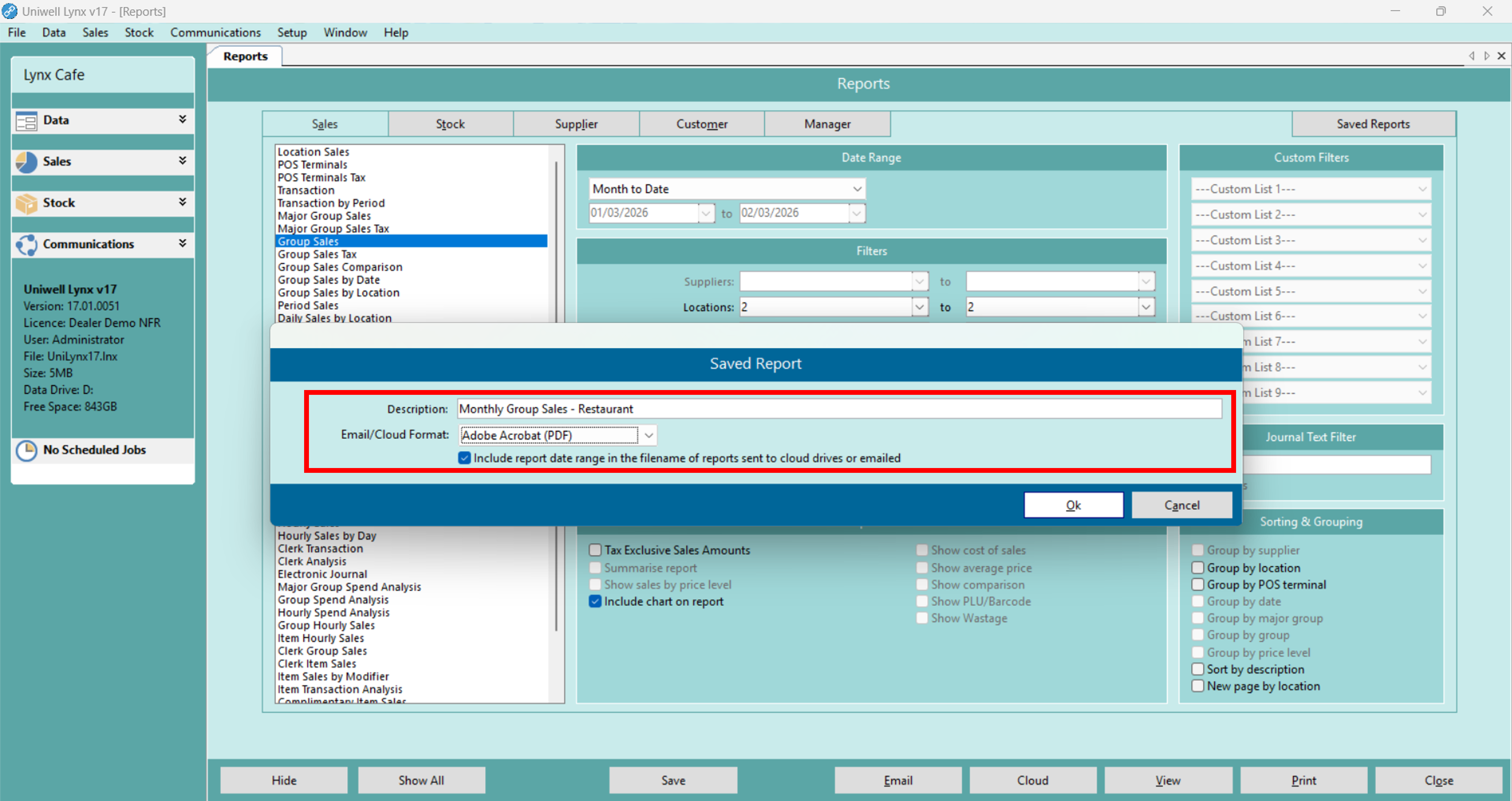
- Click the Ok button to save
You can then go to the saved reports tab at any time and select your saved report, which will be generated with current data based on your preconfigured options.
Changing the Report Colour Scheme
The latest versions of Uniwell Lynx have 7 different report colour schemes. To change your report colour scheme:
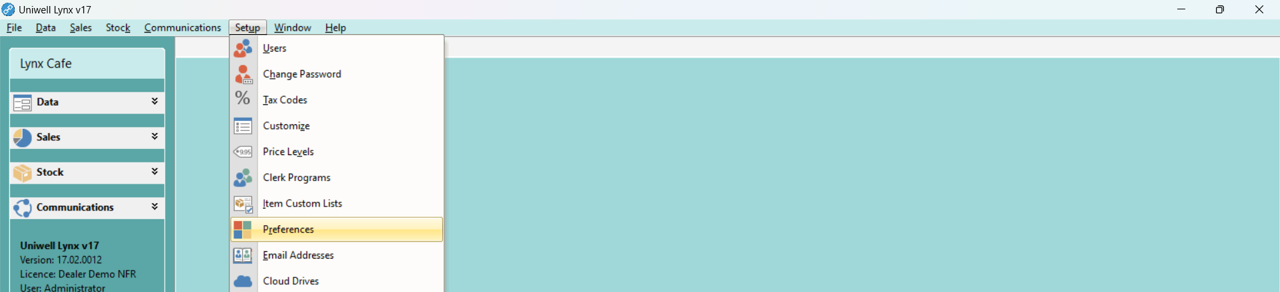
- Go to the Setup menu and select Preferences
- Go to the Other tab
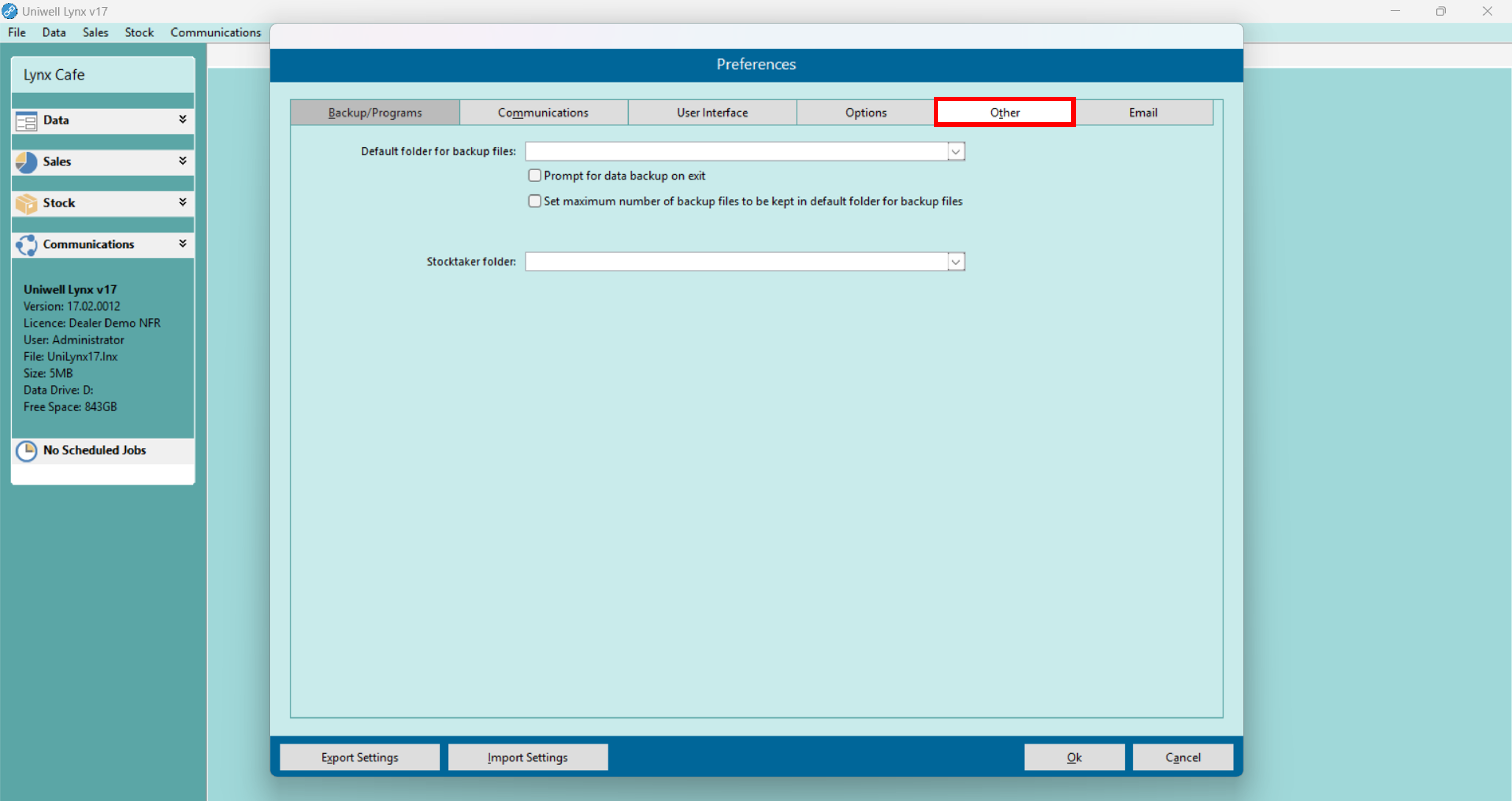
- Use the Report colour scheme dropdown box to change your colours
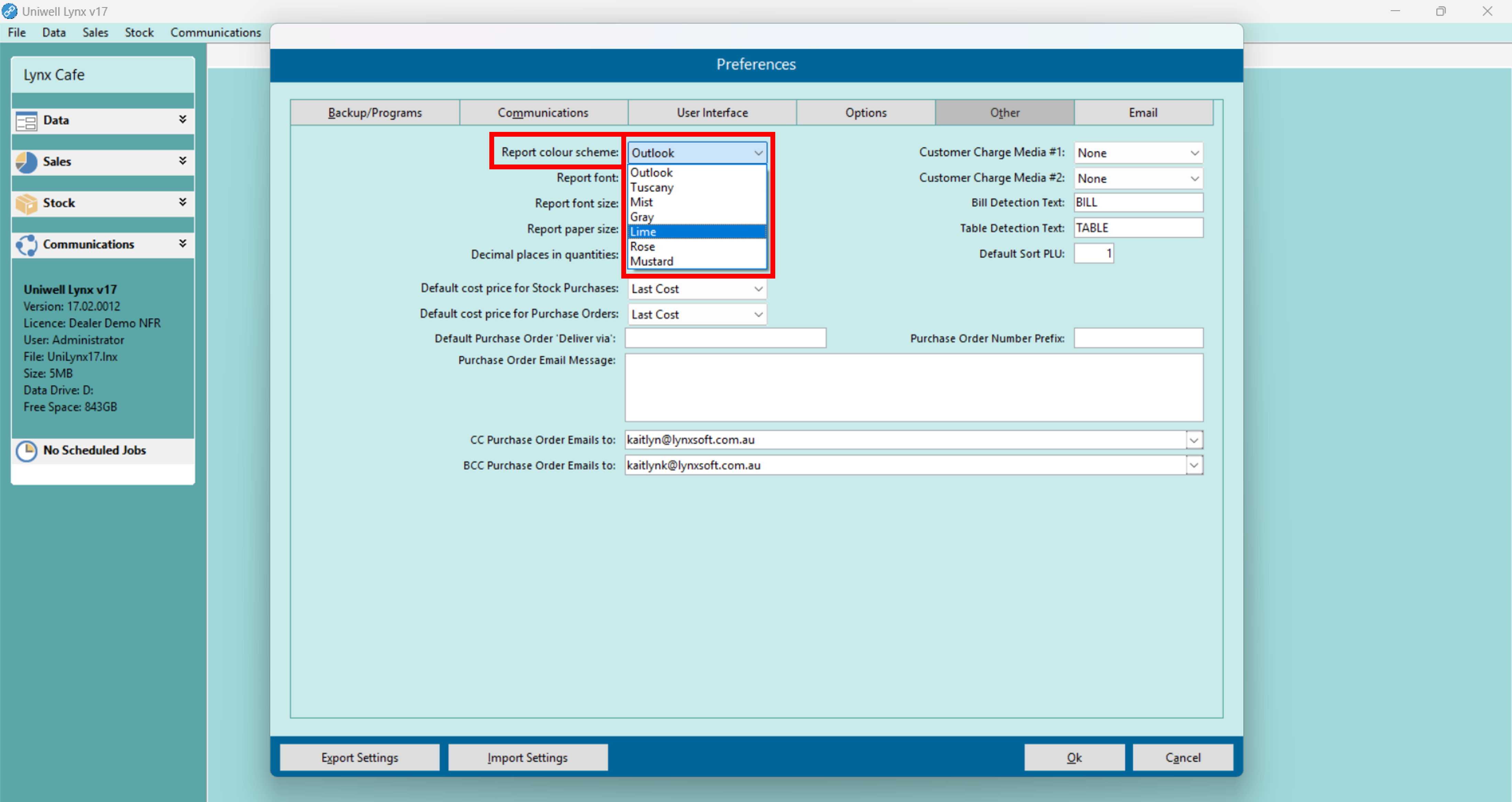
- Click the Ok button to save







 Lynx Software